
Codex
Use Fusion Model in Codex App or CLI with FUMO as a custom Responses API provider. App users can follow the CC Switch tutorial below; CLI users can go directly to “Codex CLI setup.”
Compatibility note: Fusion provides a stateless Responses API with text and image input. Codex's local file, shell, and other client-executed tools are supported through function and custom/freeform calls. OpenAI-hosted tools, non-image file attachments, stored responses, and
previous_response_idchaining are not available.
Fusion configuration
Use a FUMO Dashboard key for an account registered and funded online.
| Parameter | Value |
|---|---|
| Base URL | https://capi.fumolab.ai/api/fusion/v1 |
| Available model IDs | fusion-max-2.0, fusion-max-1.0, fusion-code-1.0 |
| API protocol | OpenAI Responses API |
What is Codex?
Codex↗ is an OpenAI coding agent for repository-aware software development. The CLI can connect to a custom model provider over the Responses API.
Codex App: Set up with CC Switch
Step 1: Prepare the apps and API key
Install Codex App↗ and CC Switch↗. Use a CC Switch version that includes the upstream format and model mapping options.
Have your FUMO API key ready. If you need one, follow Getting started for online self-service accounts (see Enterprise onboarding for enterprise accounts).
Step 2: Create a custom configuration
Select Codex on the CC Switch home screen. Click the new configuration button in the upper-right corner and create a custom configuration with these values:
| Field | Value |
|---|---|
| Configuration name | For example, FUMO |
| API key | Your FUMO API key |
| API request URL | https://capi.fumolab.ai/api/fusion/v1 |
The URL should end in /v1. Do not append /responses.
Step 3: Select the upstream format and add models
Expand Advanced options and follow these steps:
- Set Upstream format to Responses (native).
- Under Model mapping, click Fetch model list.
- Click Add model, then find and add
fusion-max-1.0orfusion-code-1.0. You can add both models. - Check that the menu display name and actual request model contain the corresponding model ID.
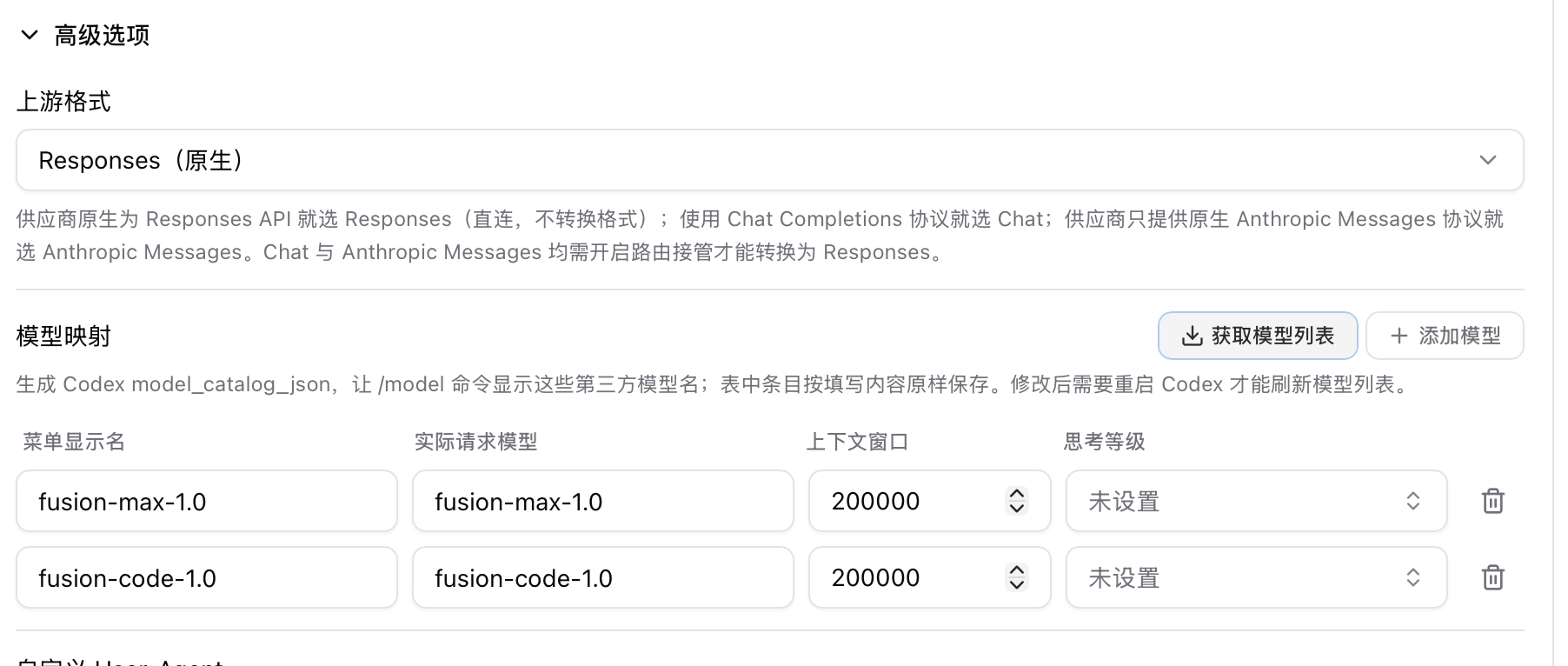
Step 4: Save, enable, and restart Codex
- Save the configuration.
- Return to the Codex home screen in CC Switch and enable the configuration you just created.
- Fully quit and reopen Codex App to refresh the model list.
- Find
fusion-max-1.0orfusion-code-1.0in the Codex App model picker and select it to start using Fusion.
After saving, enable the configuration and restart Codex. Restart Codex again whenever you change the model mapping so that the model list refreshes.
Codex CLI setup
Step 1: Install Codex CLI
Install the current package with npm:
npm install --global @openai/codex
Step 2: Get your FUMO API key
Follow Getting started for online self-service accounts (see Enterprise onboarding for enterprise accounts) to create and store your API key. If you use FUMO and have a sales representative, enter their Sales Code at signup or bind it later as described in Console and account.
Step 3: Set your API key
Export the key in the shell that starts Codex:
export FUMO_API_KEY="your-key"
Add it to your shell profile or secret manager if you want it to persist across sessions.
Step 4: Configure the provider
Create or update ~/.codex/config.toml:
model = "fusion-code-1.0"
model_provider = "fumo"
model_reasoning_summary = "auto"
model_supports_reasoning_summaries = true

[model_providers.fumo]
name = "FUMO"
base_url = "https://capi.fumolab.ai/api/fusion/v1"
env_key = "FUMO_API_KEY"
wire_api = "responses"
Supported models: fusion-max-2.0, fusion-max-1.0, fusion-code-1.0. Only Max 2.0 supports low / medium / high / max effort (default medium); the other two models do not support adjustment.
Step 5: Start Codex
Run Codex from your project:
cd /path/to/your/project
codex
Codex will send the Fusion Code model label by default.
CLI: Choose a model label
Start a session with the authorized Fusion Max model ID:
codex --model fusion-max-1.0
You can also change the top-level model value in ~/.codex/config.toml. The public gateway validates this ID against your account; after acceptance, the Fusion core treats it as a compatibility label and the request value does not override the active internal topology.
Supported workflow
Fusion's Responses endpoint supports the parts Codex needs for repository work:
- text and image input plus developer instructions;
- function and custom/freeform tools plus tool results;
- parallel tool calls;
- streaming Responses events;
- reasoning summaries and text verbosity controls.
Supported models: fusion-max-2.0, fusion-max-1.0, fusion-code-1.0. Only Max 2.0 supports low / medium / high / max effort (default medium); the other two models do not support adjustment.
Do not enable Codex web search for this provider. Use Codex's local function or custom/freeform tools, or another client-executed tool integration instead.
Troubleshooting
Fusion models do not appear in the app
Confirm that the new configuration is enabled on the Codex page in CC Switch and that the desired models have been added and saved under model mapping. Then fully quit and reopen Codex App. If CC Switch cannot fetch the model list, check your API key, request URL, and network connection, and confirm that your key has access to the models.
CLI API key is missing
Confirm that FUMO_API_KEY is exported in the same environment that starts Codex:
test -n "$FUMO_API_KEY" && echo "key is set"
The request uses the wrong endpoint
Confirm that base_url ends in /v1 and wire_api is responses. Codex appends /responses.
Reasoning summary settings
Supported models: fusion-max-2.0, fusion-max-1.0, fusion-code-1.0. Only Max 2.0 supports low / medium / high / max effort (default medium); the other two models do not support adjustment.
Attachments or hosted tools fail
Images are supported when Codex sends them as Responses input_image parts. Use Codex's local function or custom/freeform tools for actions; audio, non-image file input, and OpenAI-hosted tools are not supported.
Resources
Supported models: fusion-max-2.0, fusion-max-1.0, fusion-code-1.0. Only Max 2.0 supports low / medium / high / max effort (default medium); the other two models do not support adjustment.